Android XR Sample Apps
Two sample apps for Android XR, made with Google’s XR team to show what Jetpack XR, Android’s toolkit for extended reality, can do: spatial UI, environment detection, 3D object interaction and spatial audio. Both are published as open-source Android XR experiments.
I worked on this in 2025 while at Magic Leap, embedded in Google’s AR/VR team through the two companies’ partnership. I designed the user flow and the UI panels for both apps and built the basic 3D assets; the museum artifacts are purchased 3D models.
Design Planning
Visual Design
Experience Design
3D Design
Motion Design
User Interface Design
Visual Design Director | Chris DeWan
Visual / Product / 3D Designer | Namh Kim
3D Designer | Mauricio Talero
Software Engineer | Alex Qin
App I: Personal Museum
Personal Museum turns a room into an exhibition. Users browse a collection of historical artifacts and view them at home in three modes, from a single floating panel to a full museum scene.
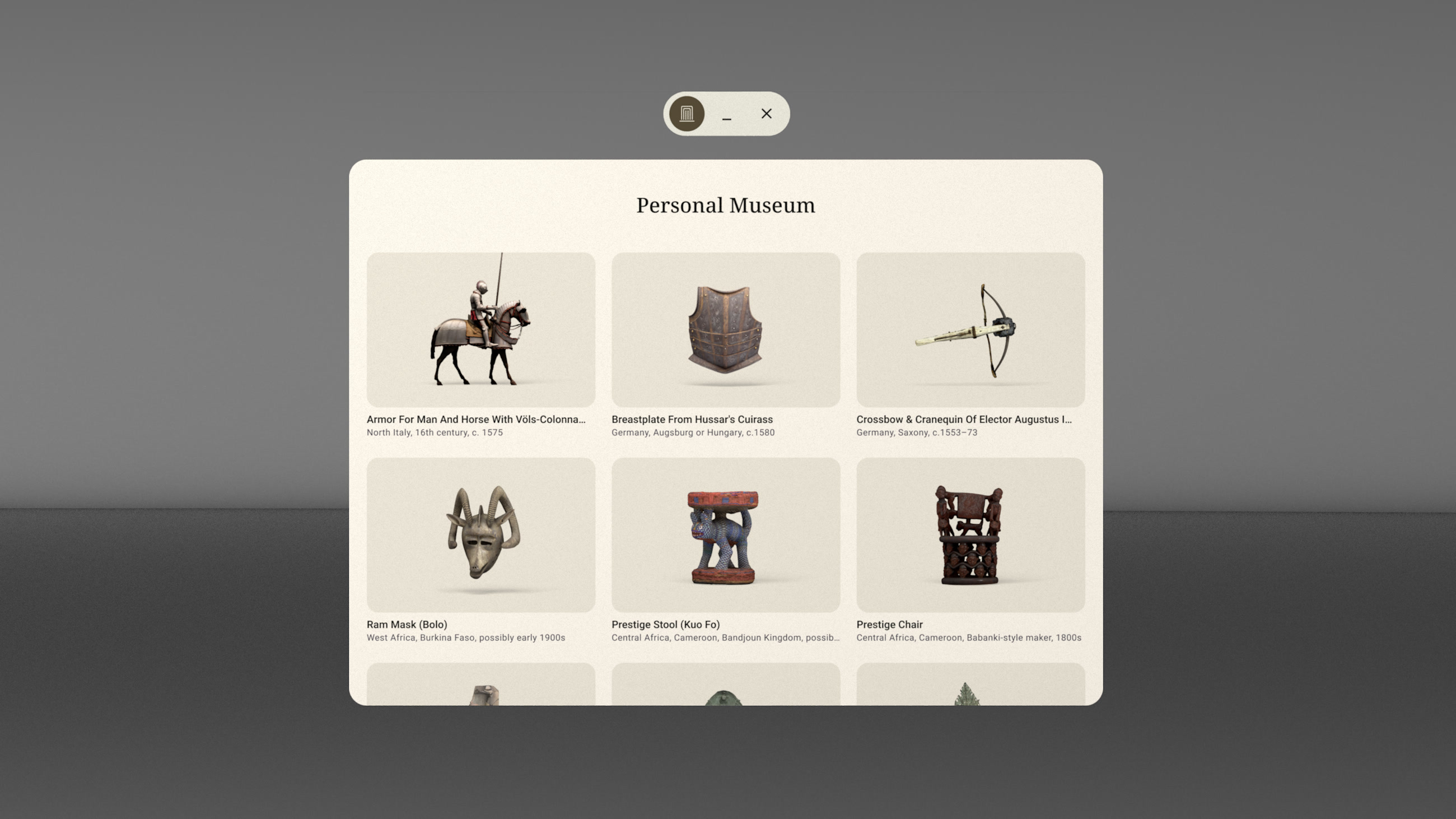
Home Space
The entry point is one panel anchored in the user’s room, with the app title, collection filter tabs and a grid of artifacts to browse.
Full Space
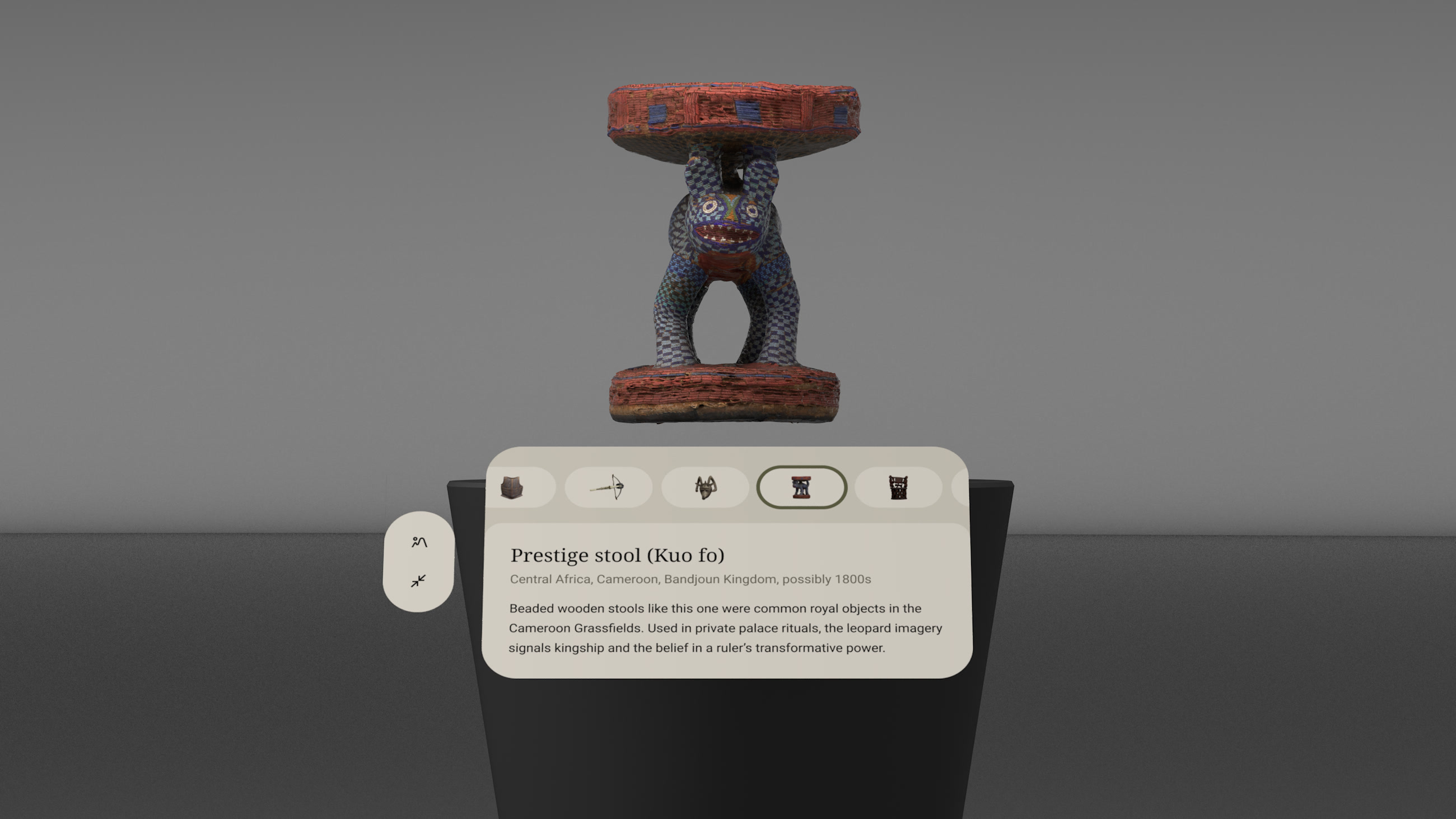
Artifacts appear at true scale in the user’s own room, on a pedestal they can walk around and view from any side.
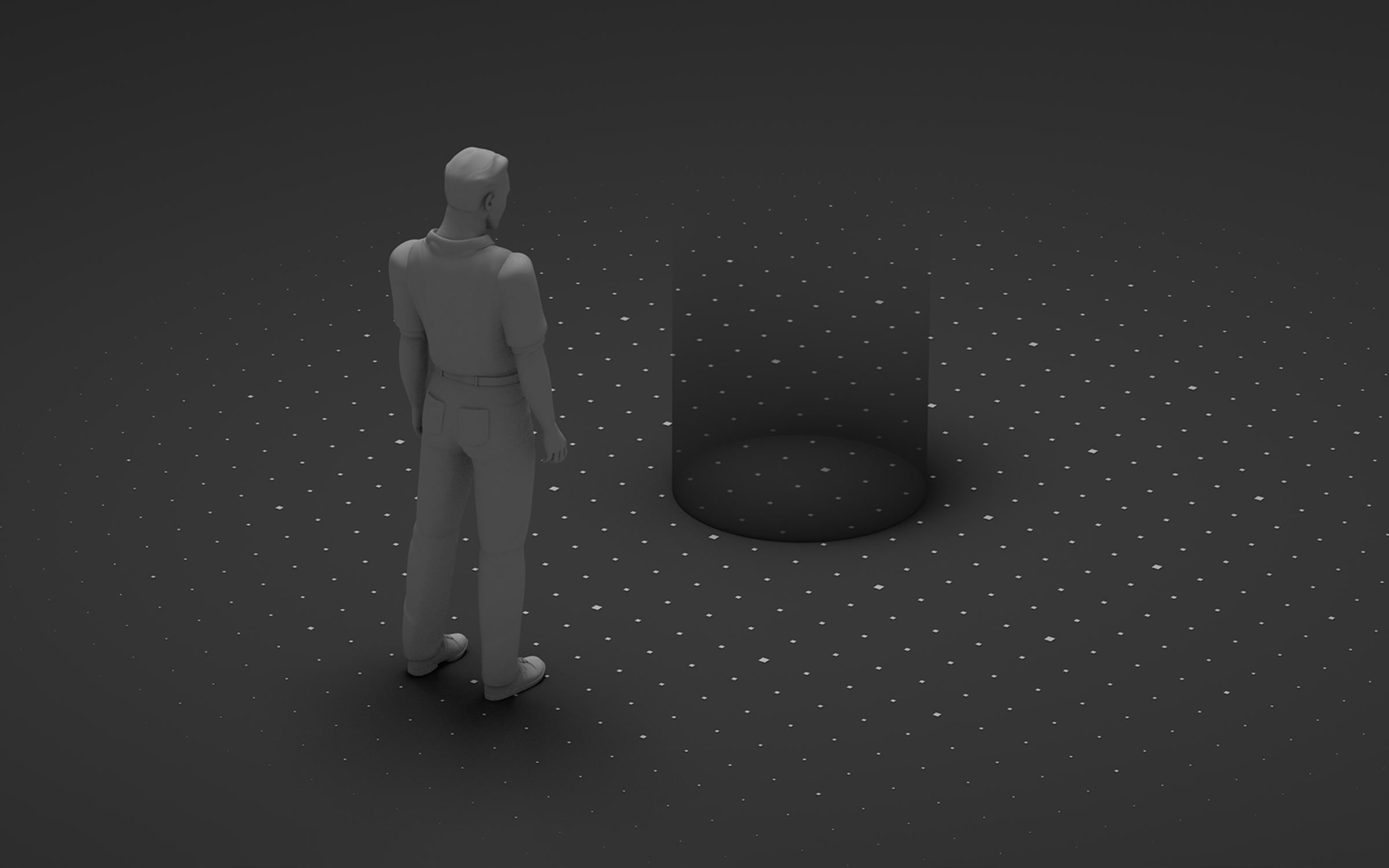
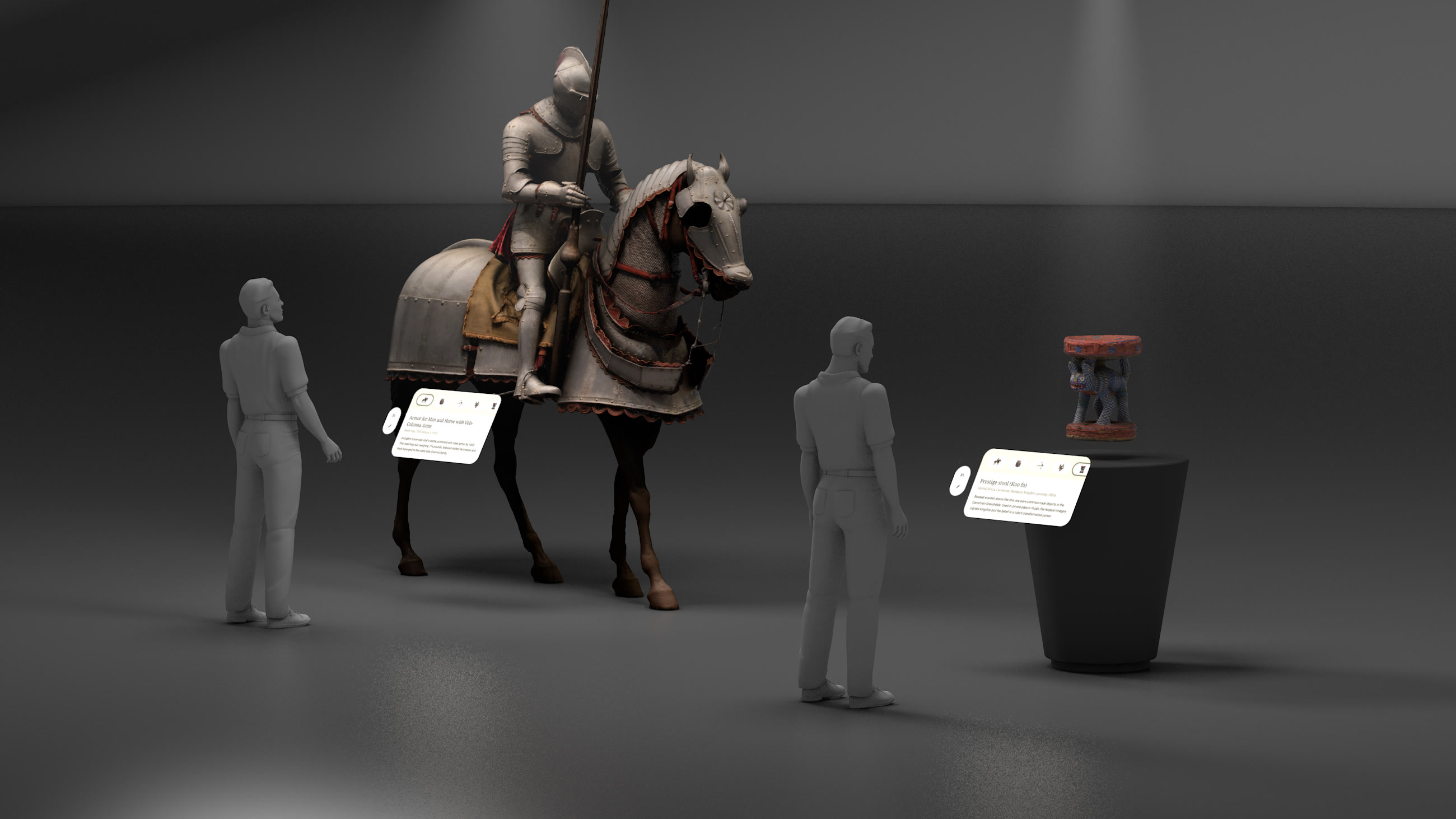
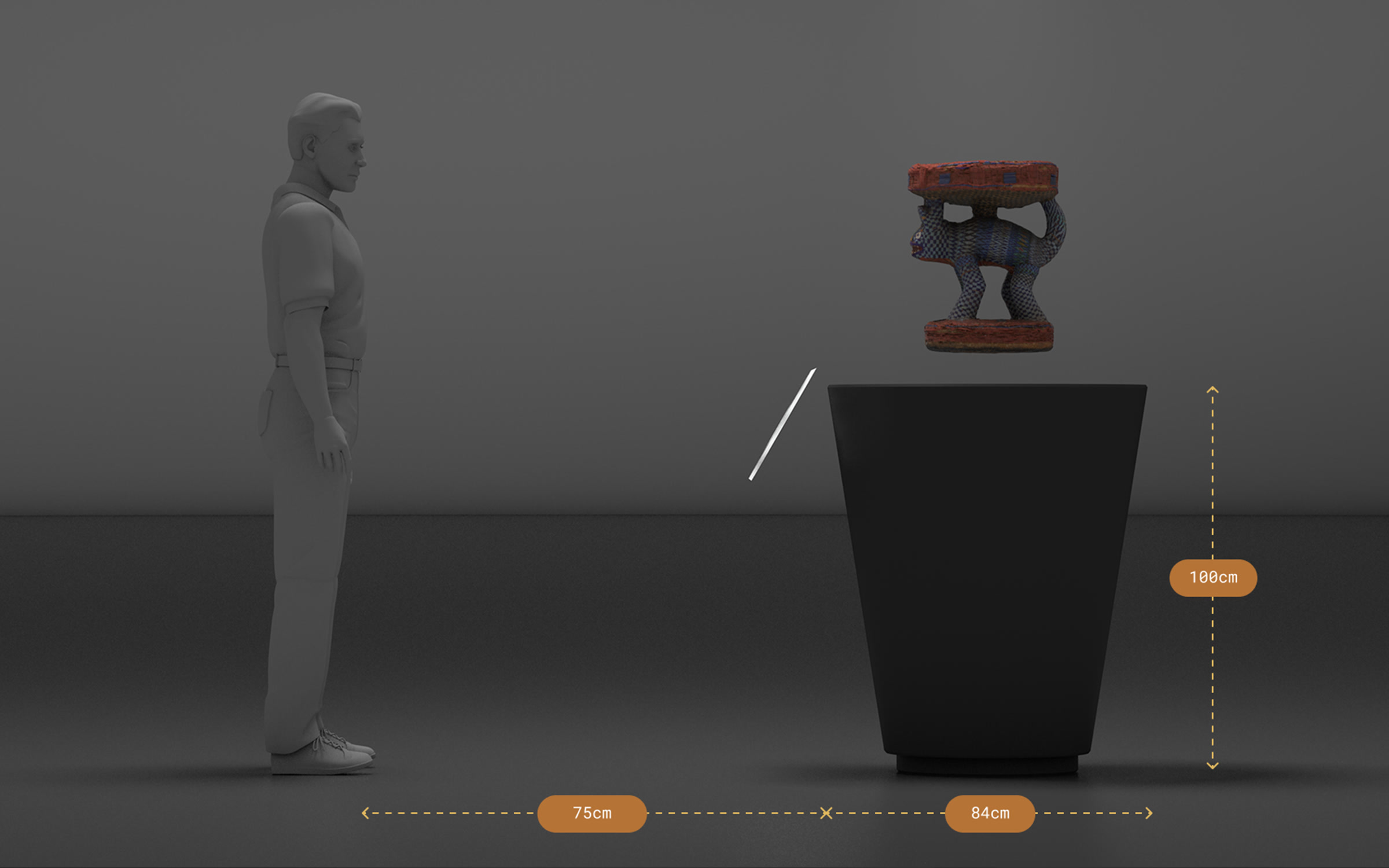
Designing for different heights
The hardest part was making the panels and the pedestal work for people of different heights. I pushed for both to adjust to the viewer, but that didn’t fit the engineering scope, so they sit at the fixed dimensions shown here.
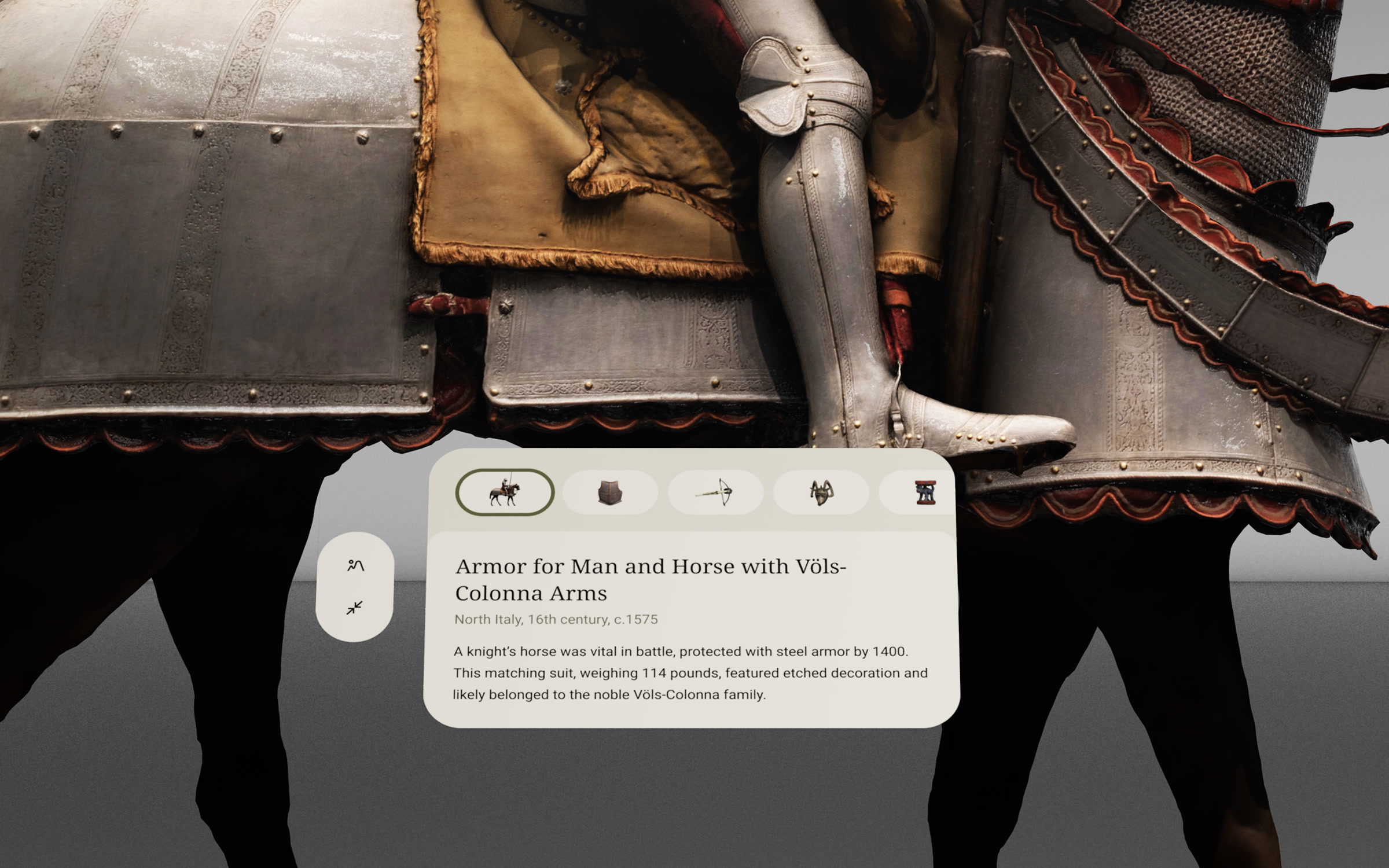
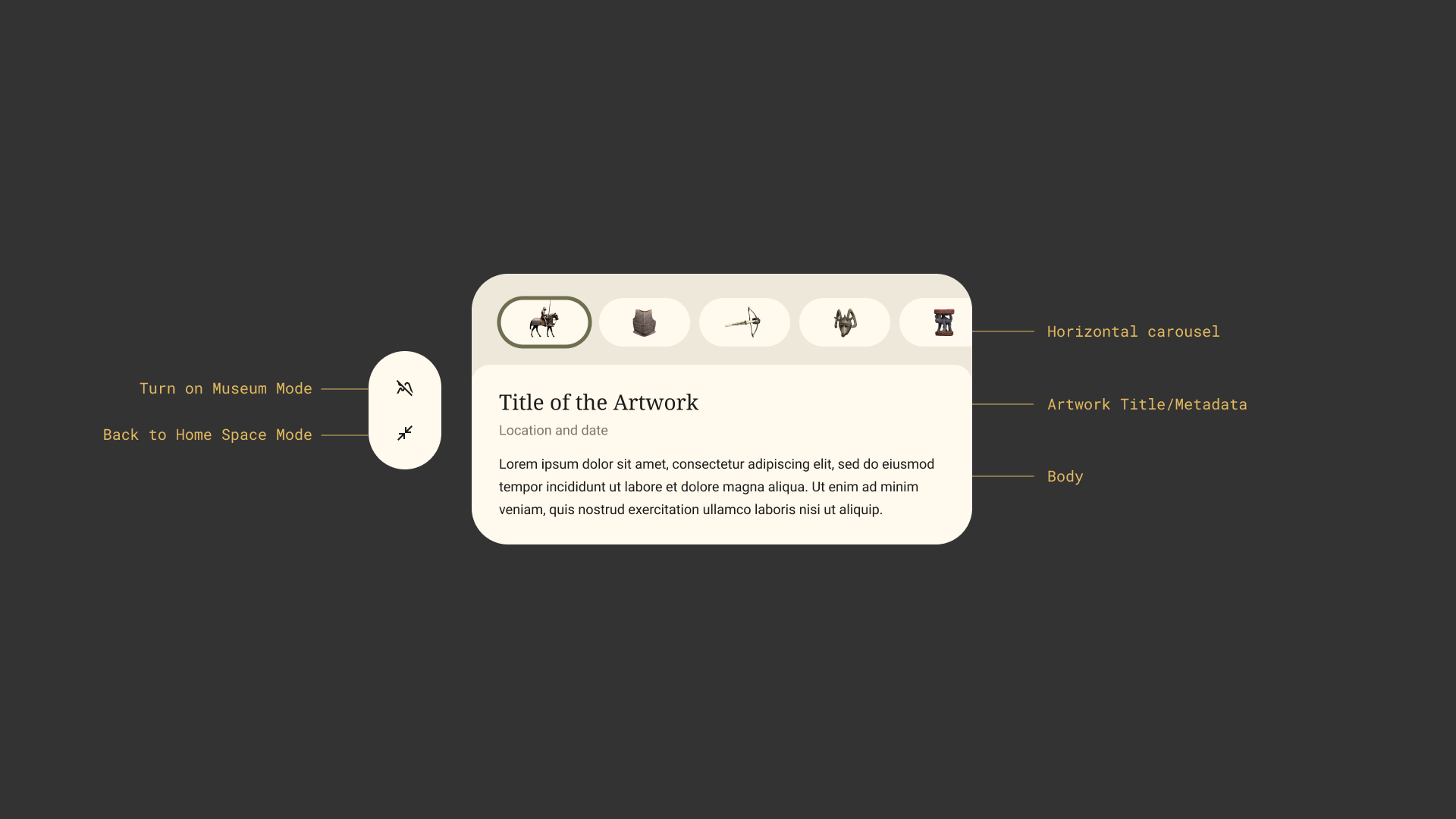
Artifact panel
A small panel travels with each artifact. It holds a carousel for moving between pieces, the title and details, and two buttons for switching mode or returning to Home Space.
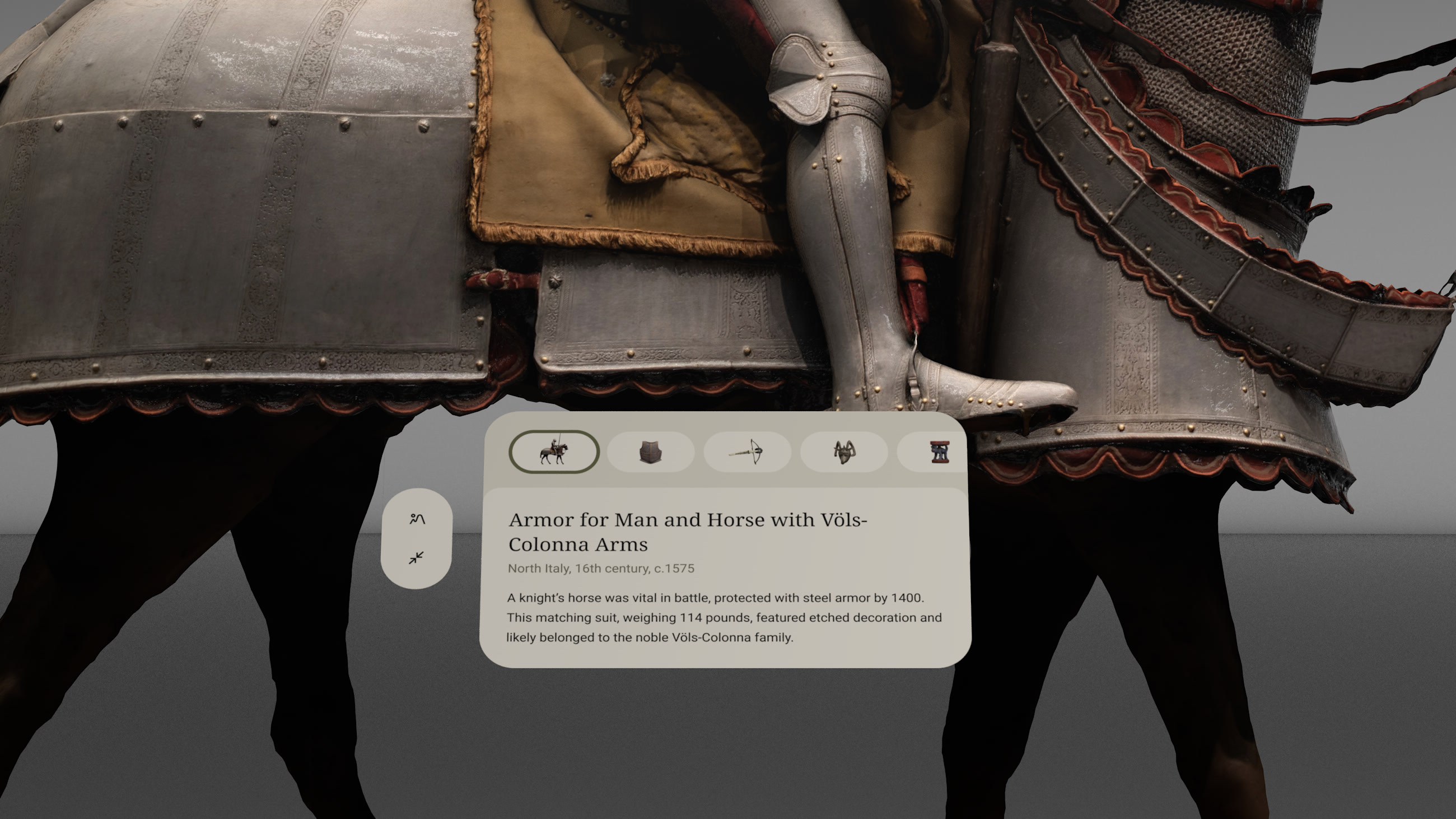
Cinematic
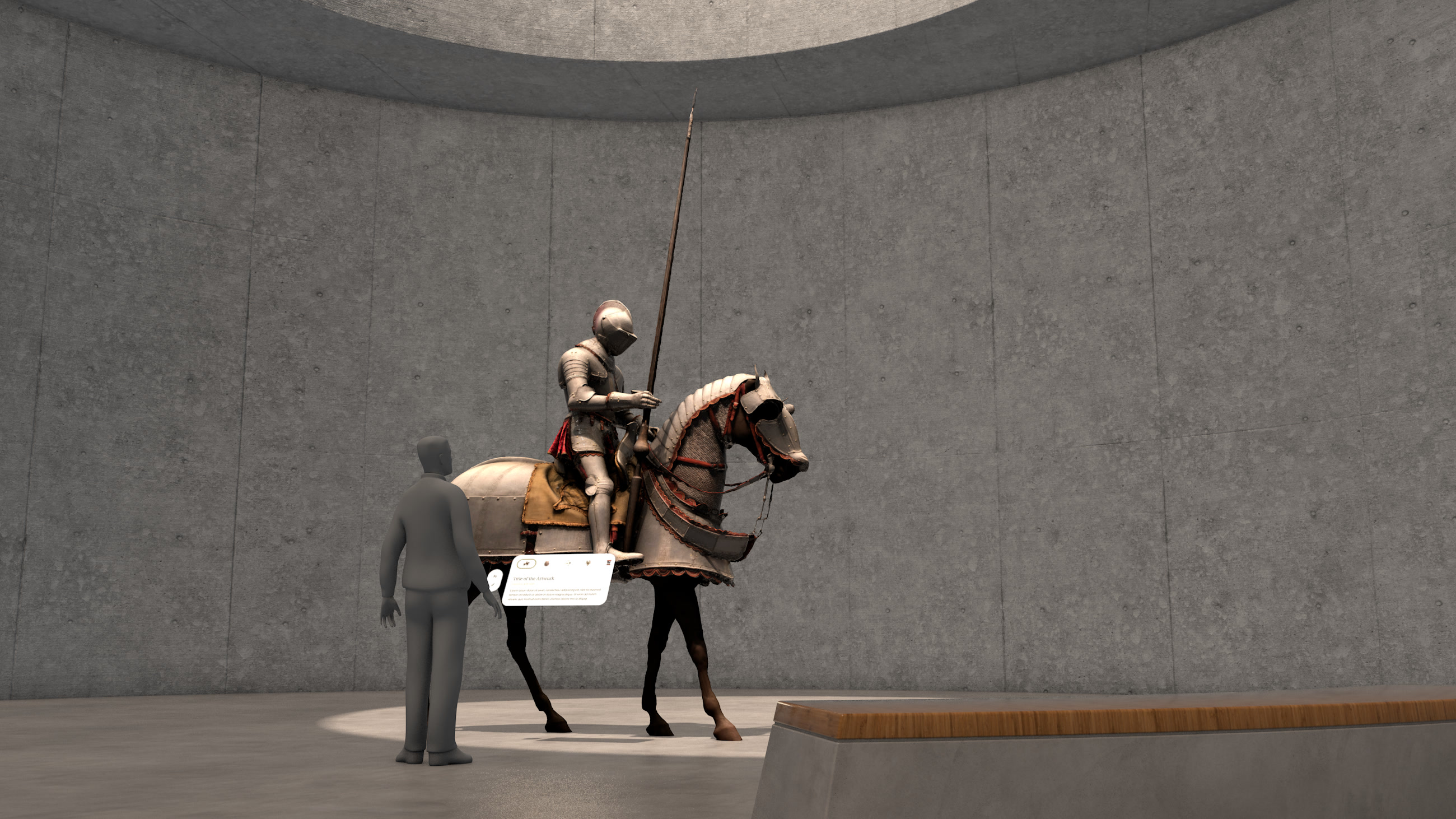
The room is replaced by a museum gallery with its own architecture and lighting. The environment was modeled by Mauricio Talero.
App II: Sound Explorer
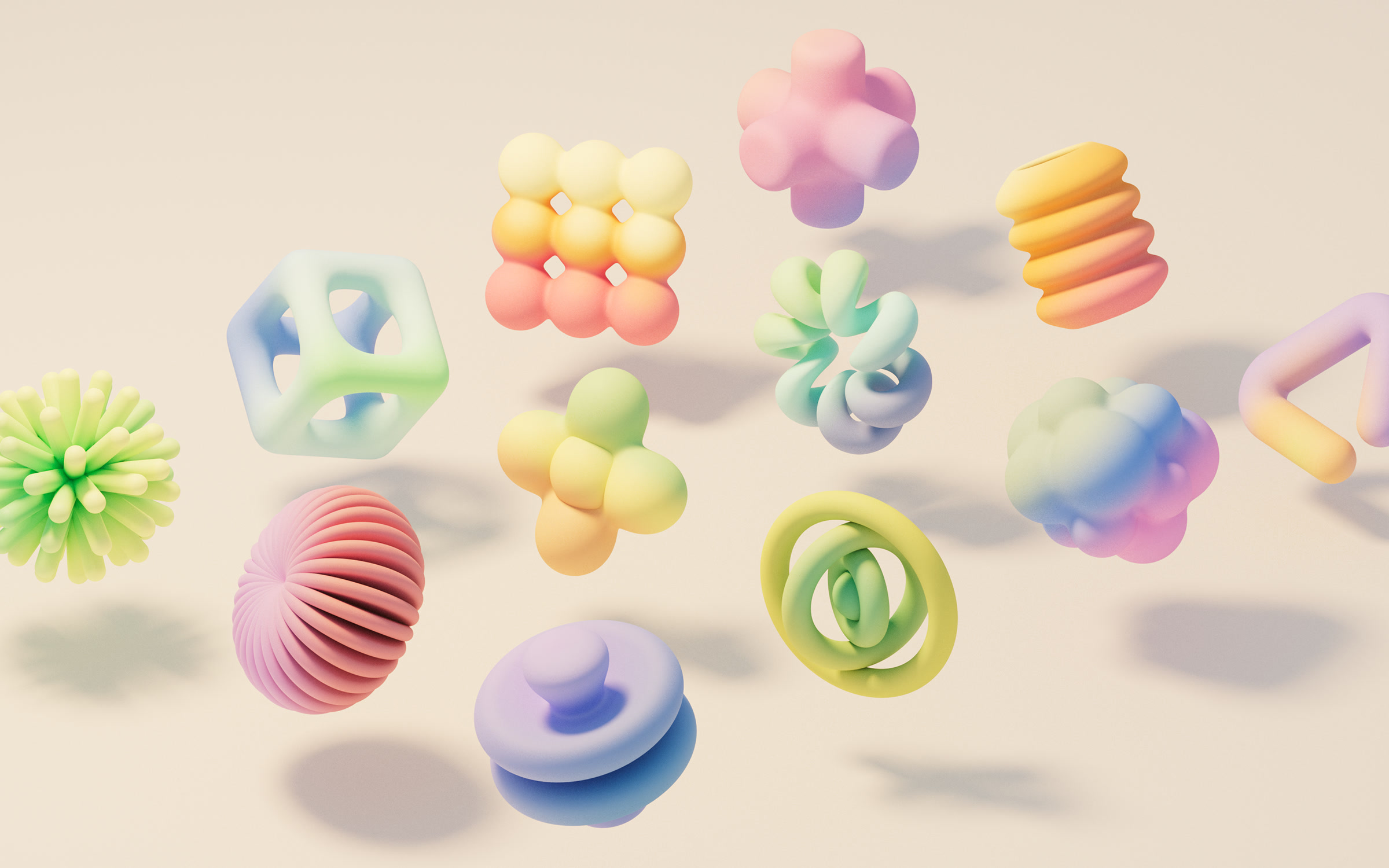
Sound Explorer is a spatial instrument. Users pull soft 3D shapes out of a menu and place them around the room; each one plays a loop, and together they build a composition.
Nine shapes
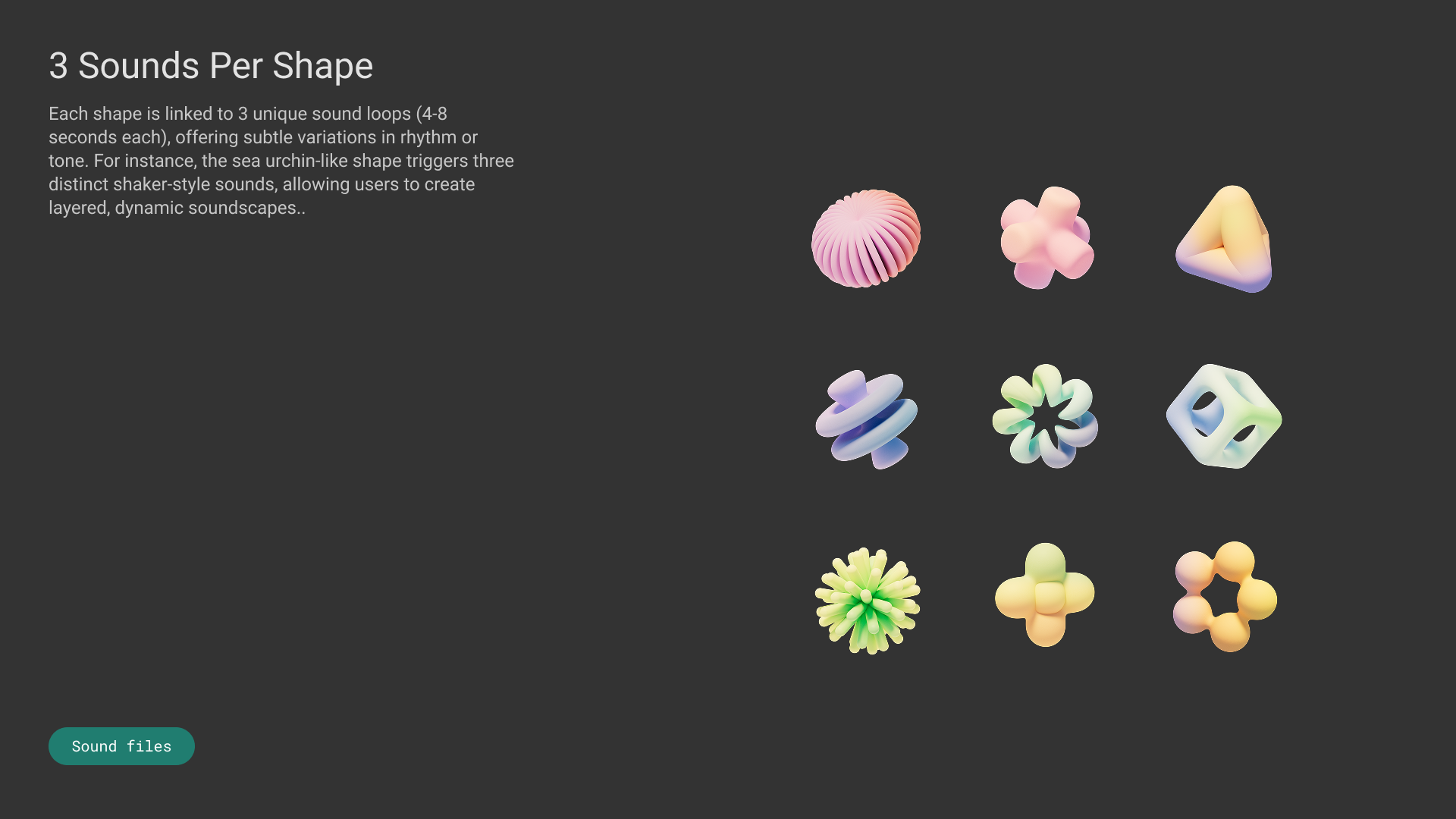
There are nine shapes, each with its own form, color and sound. They are soft and pastel so they invite touch.
Menu
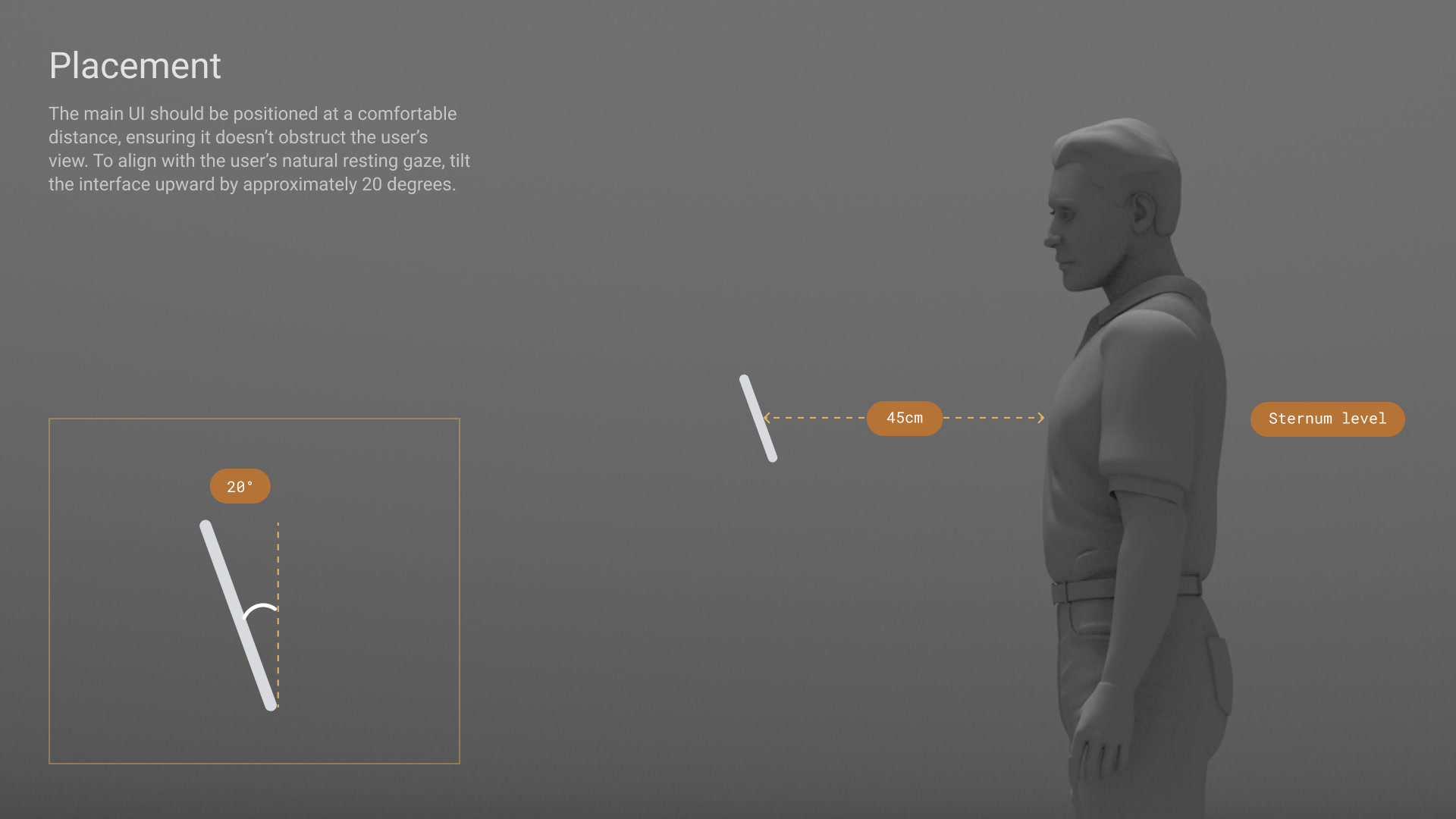
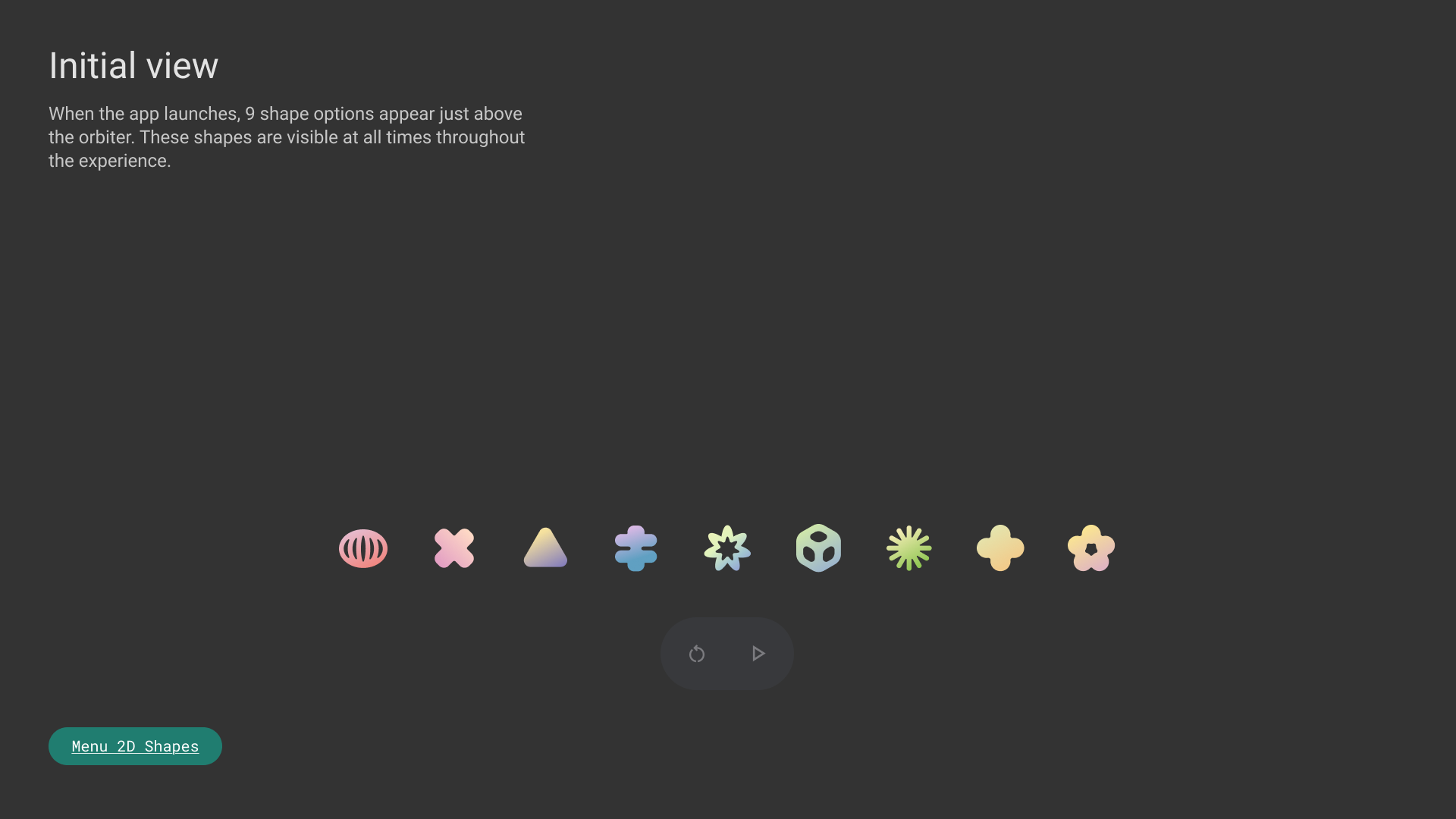
The nine shapes sit in a row above a small control bar and stay visible throughout. The menu is placed at a comfortable distance and tilted up about 20° to meet the user’s resting gaze.
Placing and recalling
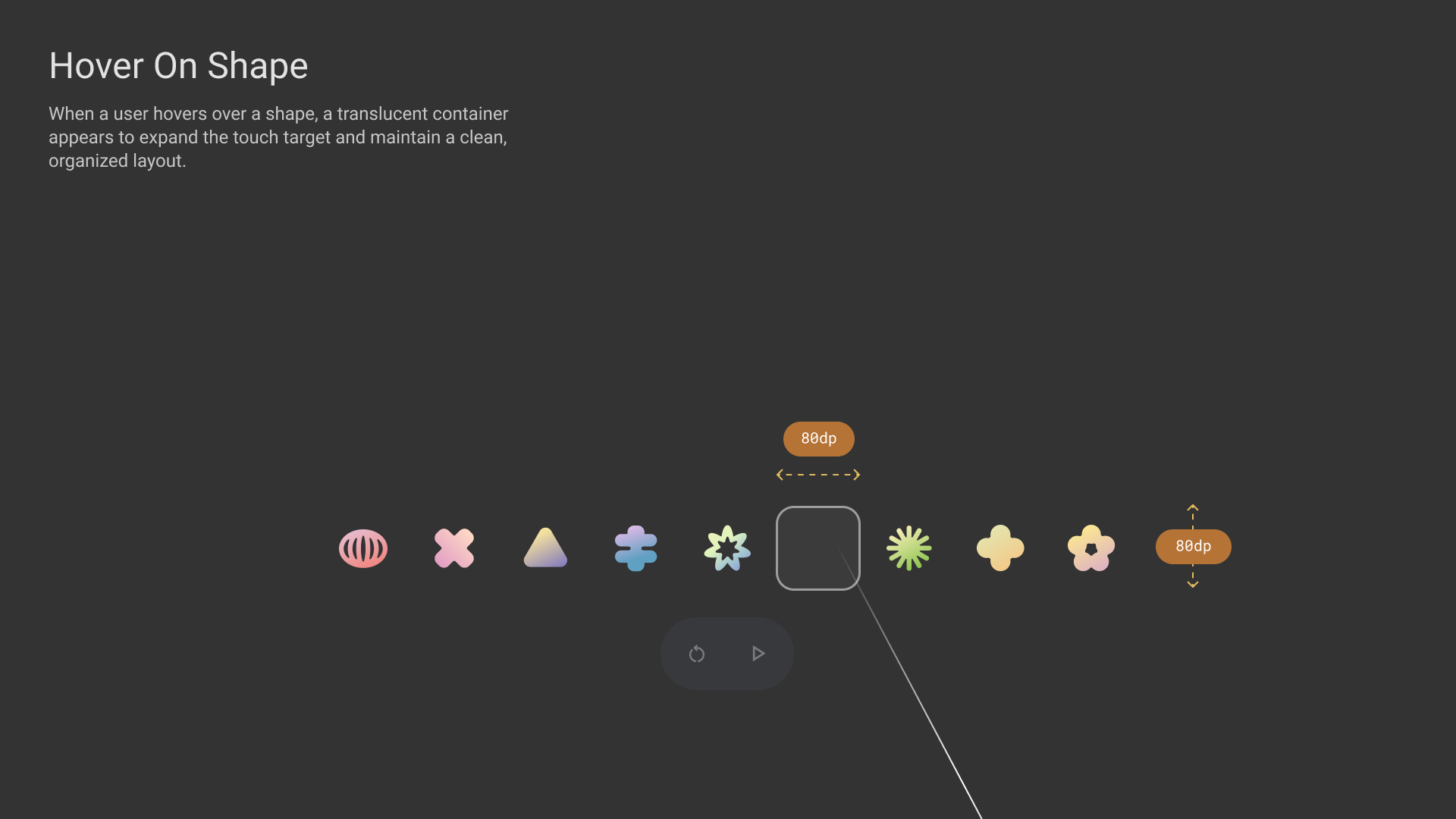
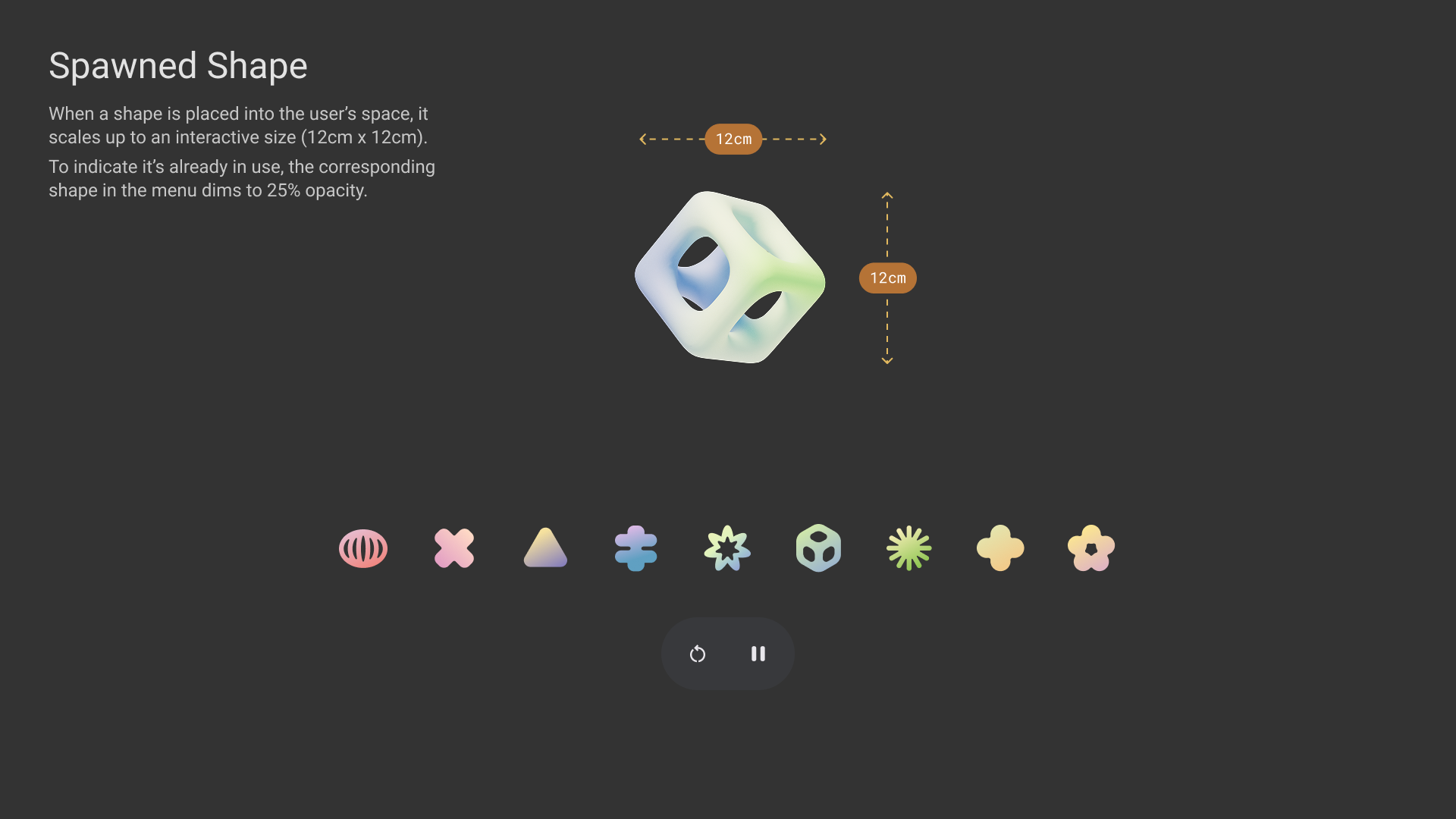
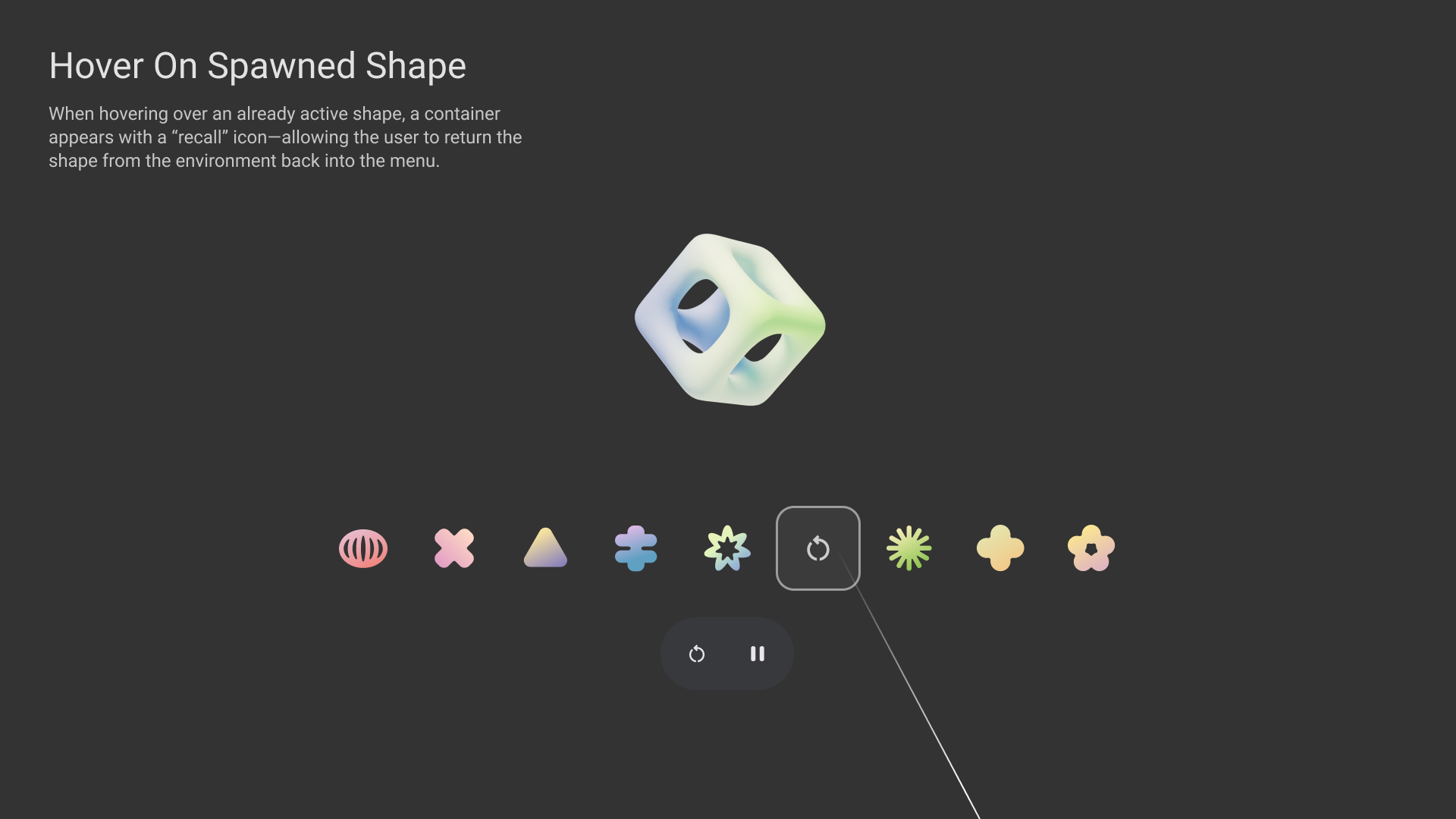
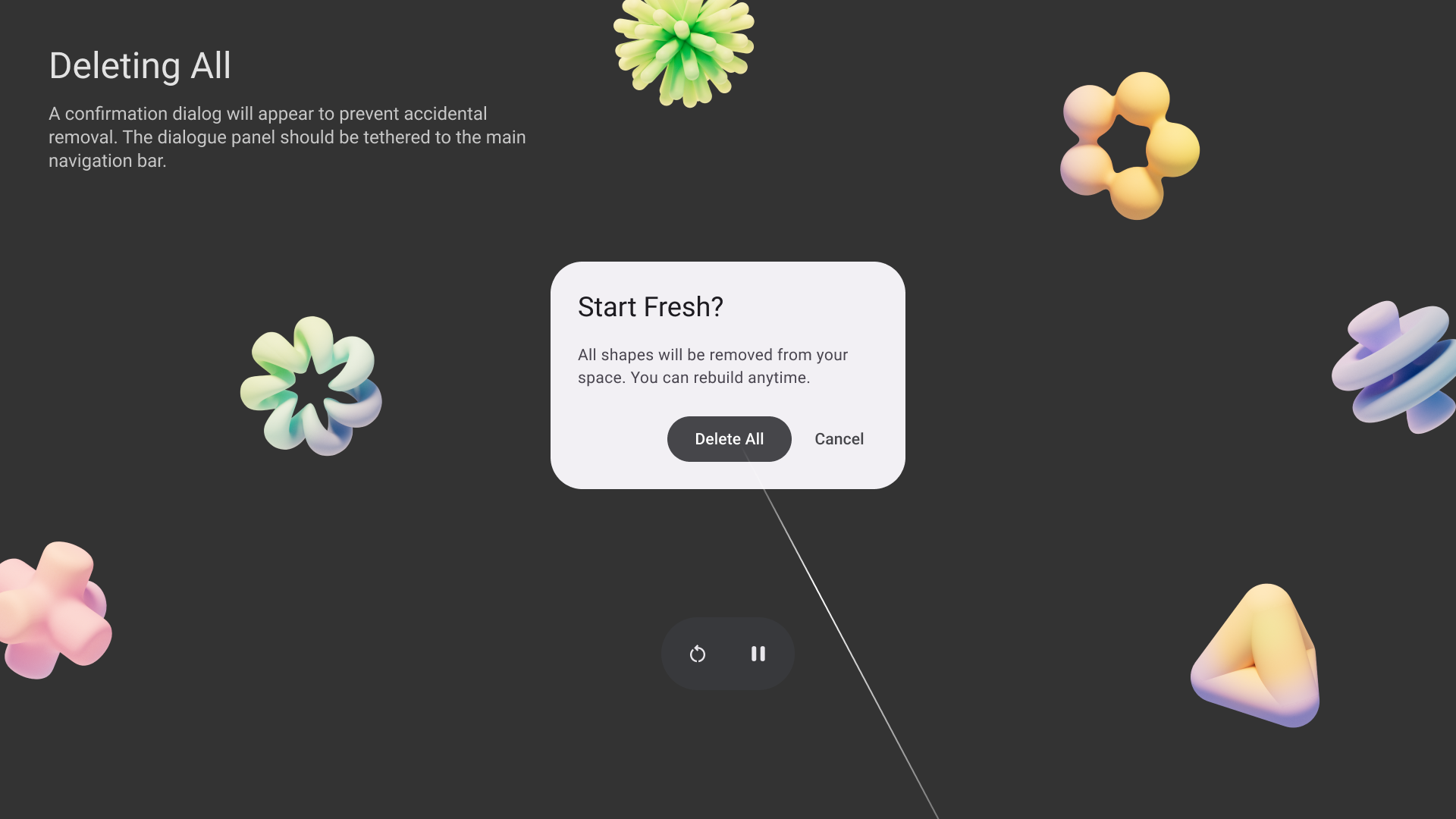
Hovering over a shape expands its touch target. Once placed, a shape scales up to 12cm and starts playing, and its menu icon dims to 25% to show it is in use. Hovering over a placed shape offers a recall button, and a confirmation guards against clearing the whole scene by accident.
How the sound works
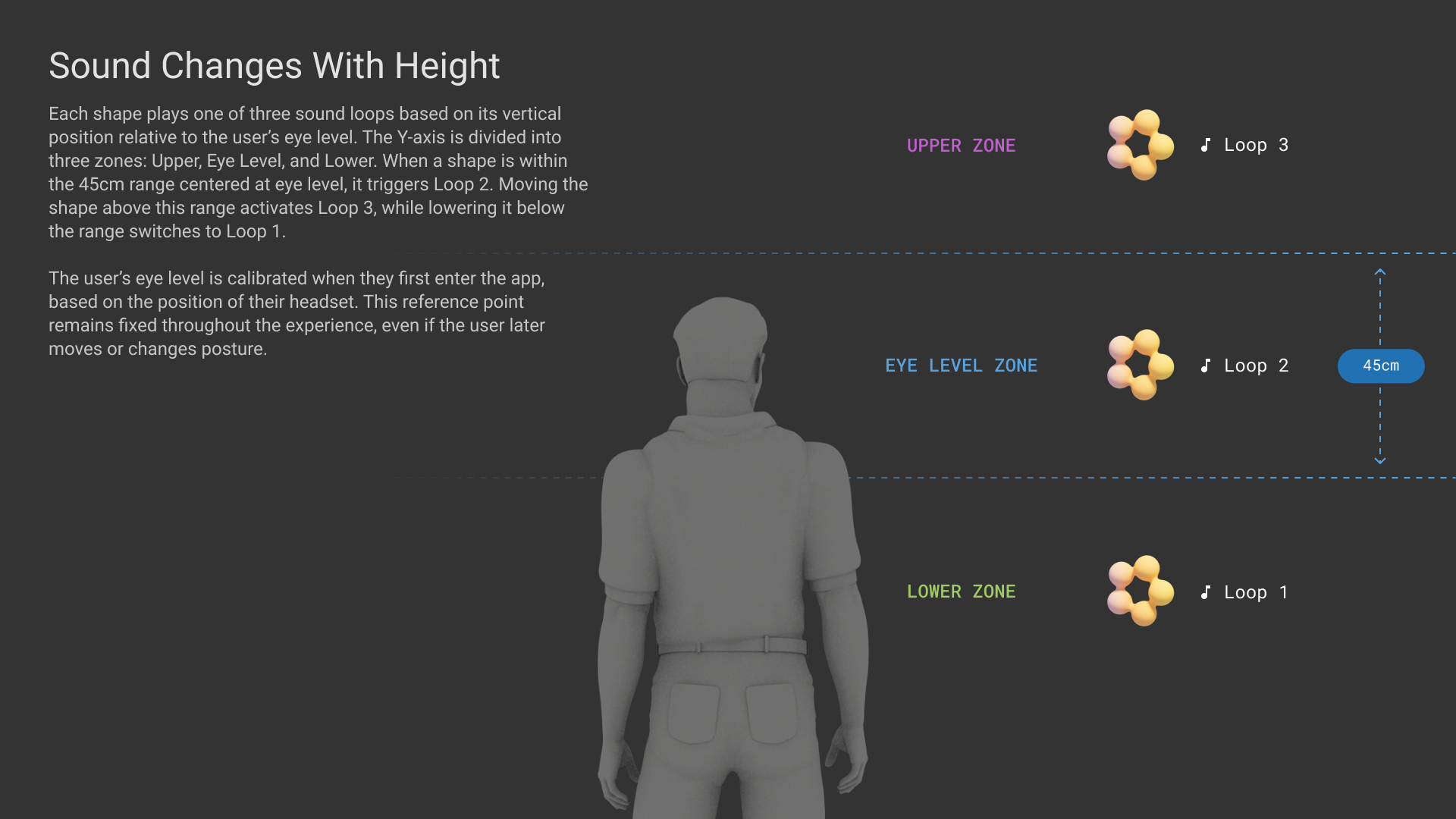
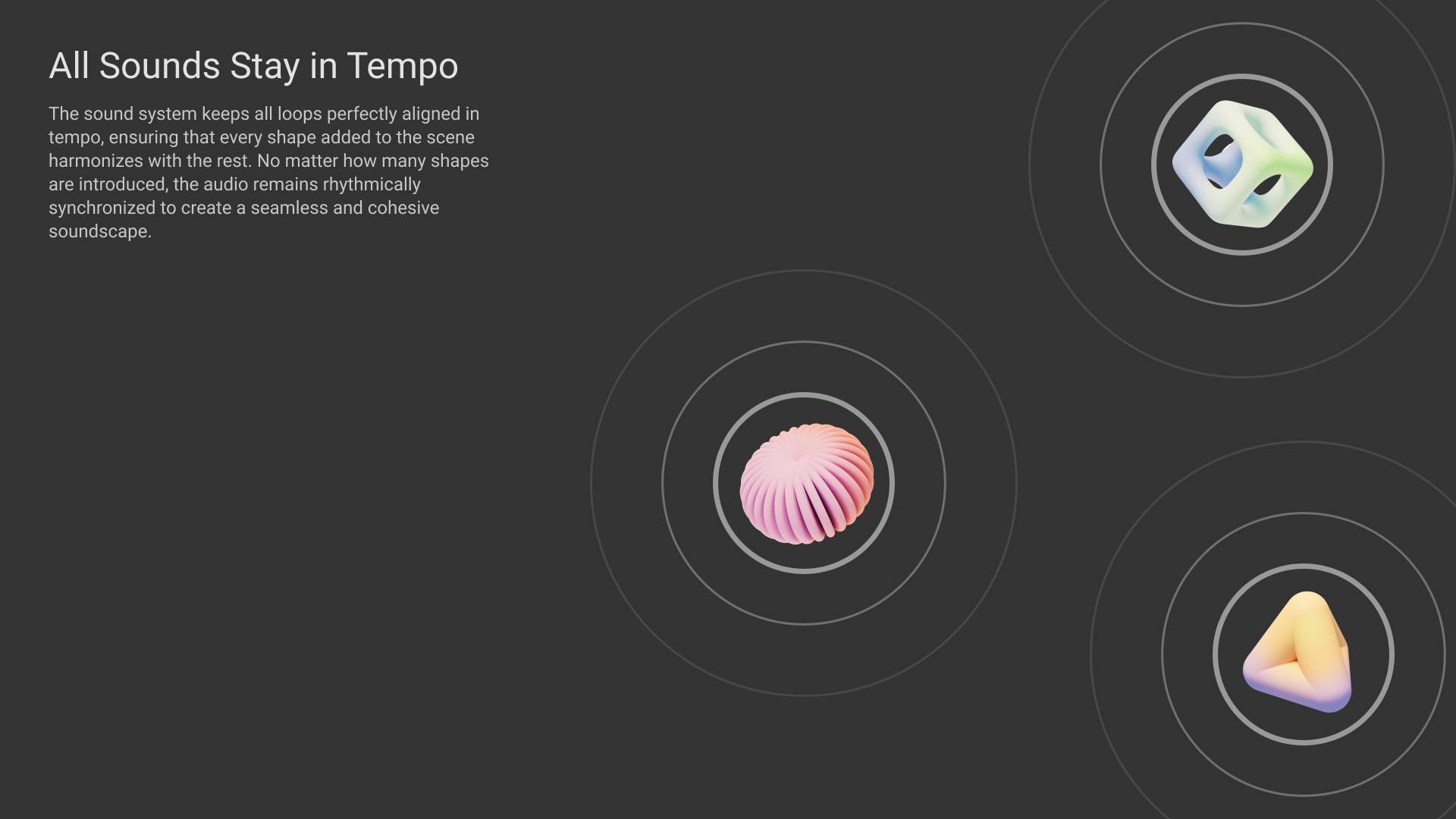
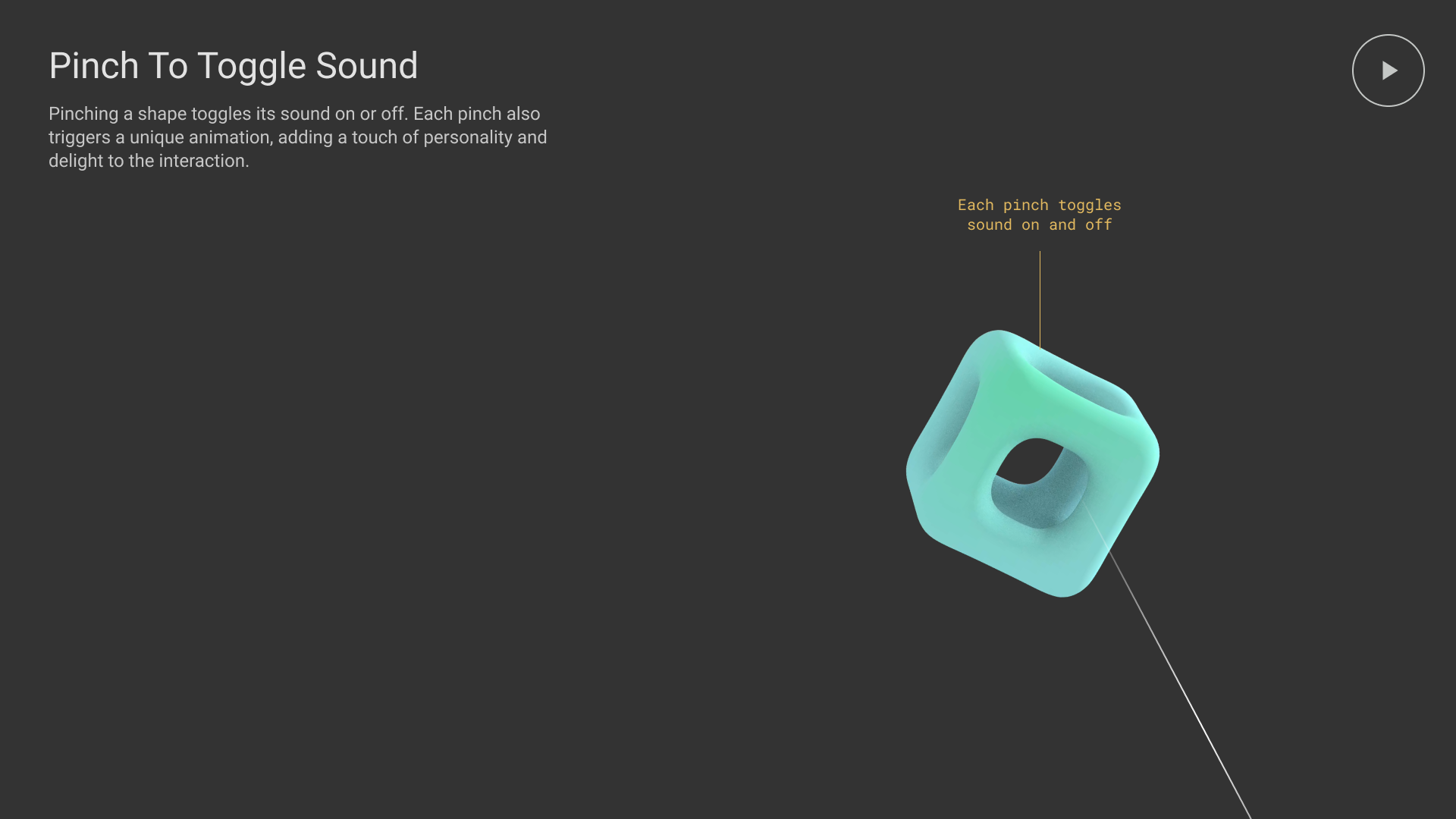
Each shape has three loops of four to eight seconds. Height decides which one plays: a 45cm band at eye level plays the second loop, above it the third, below it the first. Every loop stays in tempo, so any combination works together, and pinching a shape turns it on or off. The idea of mapping sound to height came from the team.